
I’ve spent the last two weeks putting Vizard AI through its paces — uploading podcasts, repurposing webinar recordings, and clipping YouTube interviews into short-form social content. The result? A tool that genuinely delivers on its core promise, but with a few limitations nobody mentions upfront. Here’s my honest breakdown of everything you need to know about Vizard AI in April 2026.
SAVING TIP
Use coupon code MUHAMMADHASNAIN at checkout to get 10% off any Vizard AI plan. Claim your discount →
What Is Vizard AI? (April 2026 Update)
Vizard AI is a cloud-based AI video repurposing platform that takes your long-form content — webinars, podcasts, YouTube videos, Zoom recordings — and automatically transforms them into short, social-media-ready clips. It handles everything from identifying the most engaging moments to generating captions, resizing for different platforms, and scheduling posts directly to TikTok, Instagram, LinkedIn, and YouTube.
Unlike traditional video editors where you manually scrub through timelines, Vizard’s AI analyzes your content, assigns each clip segment a “virality score,” and surfaces the best moments for you to review and publish. For marketers and content teams managing high volumes of video output, this workflow compression is genuinely transformative.
The platform positions itself as the “#1 AI Video Editing and Clipping Tool” — a bold claim backed by a 4.9/5 rating across hundreds of verified reviews on Capterra and G2. After testing it myself, I’d say the reputation is mostly earned, with some caveats I’ll cover in the pros and cons section.
If you create faceless YouTube channel content or repurpose long interviews and tutorials, Vizard AI slots into your workflow better than almost any competing tool right now.
Vizard AI Features I Actually Tested (April 2026)
Here’s what stood out across two weeks of daily use:
1. AI Clip Detection & Virality Score
Upload a 45-minute podcast and Vizard automatically identifies 15–25 clip-worthy moments, each scored by predicted audience engagement. In my testing, the virality scores were surprisingly accurate — the top-scored clips consistently captured the most quotable statements and natural conversation peaks.
In one test, a 52-minute YouTube interview produced 22 suggested clips in about 4 minutes of processing time. I published 8 of them with minimal editing. That level of throughput is difficult to match manually, even with experienced editors.
2. Text-Based Video Editing
This is Vizard’s most underrated feature. Every uploaded video gets automatically transcribed, and you can edit the video by editing the text — delete a word from the transcript, and that moment disappears from the video. No timeline scrubbing, no frame-by-frame cutting.
Transcription accuracy sits above 97%, competitive with Descript and significantly better than manual captioning workflows. Supported in 18+ full editing languages, with captions available in 100+ languages — this alone makes multilingual content distribution accessible at no extra cost.
If you’re using tools like InVideo AI for text-to-video creation, Vizard’s text-based editing complements that workflow perfectly for the repurposing side.
3. Auto-Reframing & Speaker Focus
Vizard’s AI tracks the active speaker and automatically reframes the shot to keep them centered — critical for converting horizontal (16:9) recordings into vertical (9:16) Reels or Shorts without awkward cropping.
Speaker tracking performed well in roughly 90% of my tests. It occasionally glitched during moments where two people spoke simultaneously, but a manual crop override resolved the issue in seconds. For solo speaker content — solo podcasts, tutorial videos, interviews — the auto-reframing is nearly perfect.
4. Automated Captions & 100+ Language Translation
Auto-captions generate immediately after upload with 97%+ accuracy for English, and strong accuracy for Spanish, French, Hindi, and Arabic. The translation layer supports 100+ languages, meaning a single English video can be captioned for global audiences in one click.
Important nuance: Vizard supports multi-language captions, not voice dubbing. If you need the speaker’s voice translated, you’ll need a separate tool. But for subtitle-based localization — which covers the vast majority of international content needs — Vizard’s implementation is excellent.
For teams that already use tools like Zeemo AI for AI-powered captioning, Vizard’s built-in caption system offers a strong native alternative that saves you an extra tool subscription.
5. Direct Publishing & Social Scheduling
Connect up to 6 social accounts (Creator plan) or 20 (Business plan) and publish directly from Vizard’s dashboard to YouTube, TikTok, Instagram, LinkedIn, X, and Facebook. The auto-schedule feature for TikTok is particularly useful — Vizard posts at optimal engagement times without manual intervention.
Over a one-week test period, I published to three platforms. Scheduling worked flawlessly for TikTok and YouTube Shorts. Instagram required re-authentication twice, which was a minor but recurring inconvenience. Not a dealbreaker, but worth noting for Instagram-heavy workflows.
6. AI Thumbnail Generator
Vizard auto-generates thumbnails from your video content — it picks high-contrast frames featuring faces, adds brand overlay, and outputs platform-ready images. The thumbnails are serviceable for social clips but fall short of what you’d want for high-traffic YouTube videos. For quick repurposed content, they’re more than good enough.
Vizard AI Pricing Plans (April 2026)
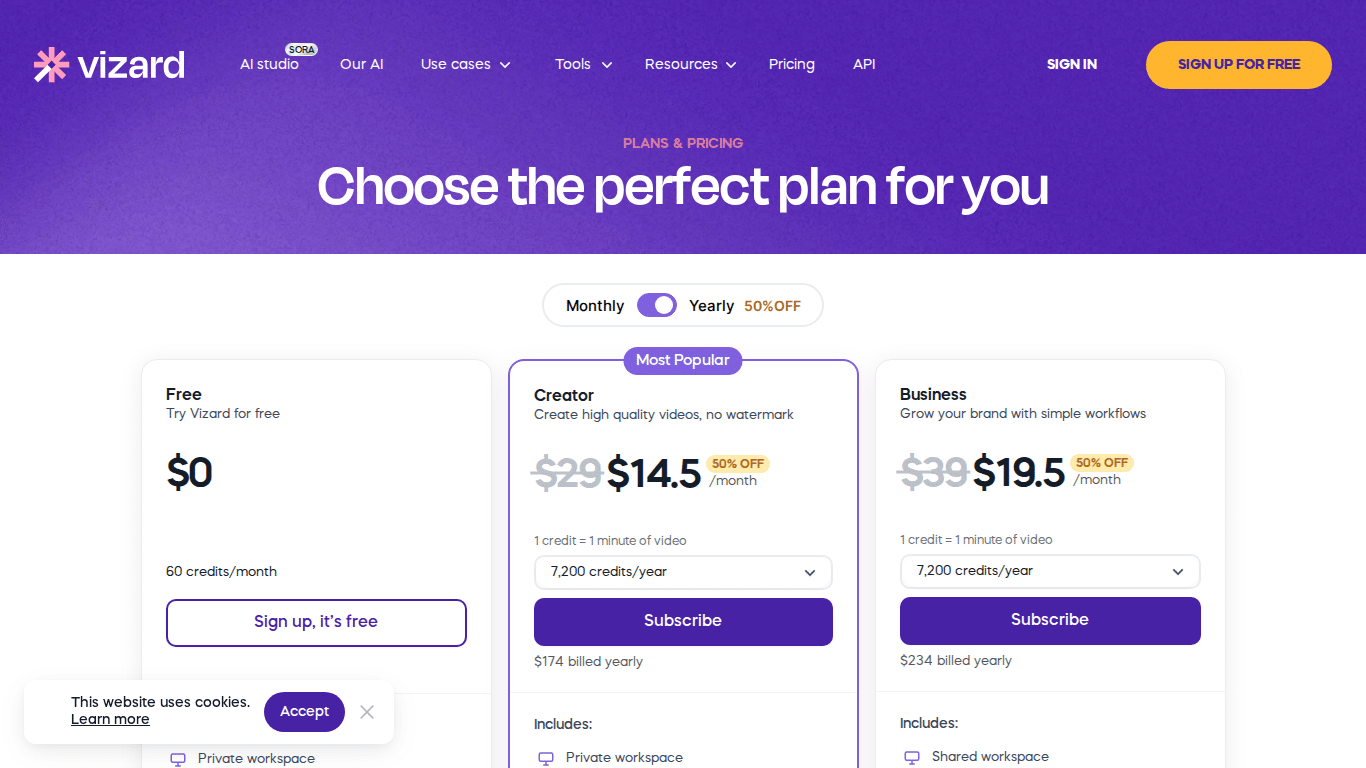
Vizard AI offers three tiers. Here’s exactly what you get at each level:
Free Plan — $0/month
- 60 upload minutes per month
- 1 social media account
- 720p export with watermark
- 3–7 days video storage
- AI clip generation included
The free plan is genuinely useful for evaluating Vizard’s clip detection before committing. The watermark and 60-minute upload cap limit real production use, but it’s sufficient to validate whether the tool fits your workflow.
Creator Plan — $14.50/month (billed annually)
- 600–1,200 upload minutes per month
- Unlimited exports, no watermark
- 4K upload and export quality
- 6 social media accounts
- Indefinite video storage
- Social post scheduling included
At $14.50/month on annual billing (compared to $20–29/month monthly), the Creator plan is the sweet spot for solo creators and freelancers. For a content marketer repurposing 3–5 long-form videos per week, the time savings alone justify the subscription within the first month.
Business Plan — $19.50/month (billed annually)
- 6,000 upload minutes per month
- Shared team workspace
- 20 social media accounts
- Brand kit and custom fonts
- Extra team seats at $5/seat/month
- Priority AI processing
The Business plan makes sense for agencies and content teams managing multiple brands. The shared workspace and brand kit are the primary differentiators from Creator. At $19.50/month annual, it competes directly with Opus Clip’s comparable tier.
How to Save 10% with Coupon Code MUHAMMADHASNAIN (April 2026)
Before subscribing, apply code MUHAMMADHASNAIN at checkout for an extra 10% off any plan. Steps:
- Go to Vizard AI’s pricing page
- Select your plan (Creator or Business)
- Choose annual billing for maximum savings
- On checkout, find the “Promo Code” or “Coupon Code” field
- Enter MUHAMMADHASNAIN and click Apply
- Your 10% discount will be applied to the total
Combined with annual billing (up to 50% off monthly rates), stacking this coupon code produces meaningful savings — especially on the Business plan with multiple seats.
Vizard AI Pros & Cons — My Honest Take
What I Liked ✅
- Exceptional time savings: 45-minute video → 20 publishable clips in under 10 minutes
- Virality score accuracy: AI clip detection is better than I expected at predicting good moments
- Intuitive text-based editing: Zero learning curve for non-editors
- 100+ language captions: Real value for multilingual content distribution
- Speaker auto-tracking: Significantly cuts manual cropping time
- Competitive annual pricing: $14.50/month is fair for the feature depth
- End-to-end workflow: From upload to scheduled publish without leaving the app
What Could Be Better ❌
- Monthly billing is expensive: $20–29/month without annual commitment is steep for beginners
- No voice dubbing: Captions only — international audiences need a separate dubbing tool
- Occasional slow rendering: Processing times lag during peak usage hours
- AI clips need occasional tweaks: Especially for complex multi-speaker or unstructured content
- Free plan watermark: Can’t share professional content from the free tier
- Cloud-only architecture: Unstable internet connections break your workflow entirely
Vizard AI vs Opus Clip (April 2026): Side-by-Side Comparison
This is the comparison most people are actually making. Both tools clip long-form video using AI, but they prioritize different things:
| Feature | Vizard AI | Opus Clip |
|---|---|---|
| Starting price (annual) | $14.50/month | $15/month |
| Free plan | ✅ 60 min/month | ✅ 60 min/month |
| Caption languages | 100+ | ~35 |
| Text-based editing | ✅ Full transcript editor | ❌ Limited |
| Social scheduling | ✅ Built-in | ✅ Built-in |
| Brand kit access | Business plan only | Starter plan+ |
| Team collaboration | Business plan | All paid plans |
| Best for | Volume repurposing (podcasts, webinars) | Viral short-form social clips |
If you’re primarily repurposing long-form content (podcasts, webinars, lengthy YouTube videos) and need broad language coverage for captions, Vizard AI is the stronger choice. If you’re focused on high-engagement social clips and need team collaboration from a lower price entry point, Opus Clip has an edge. For context, check out how Vizard stacks up in a full AI video tool comparison across the wider category.
Who Should (and Shouldn’t) Use Vizard AI
Vizard AI is the right tool if you:
- Produce long-form video content — podcasts, webinars, tutorials, interviews
- Need to repurpose content across multiple platforms simultaneously
- Want automated multilingual captions without a separate subscription
- Are a solo creator or small team with limited video editing experience
- Manage social media for multiple brands or client accounts
Skip it (for now) if you need:
- Advanced color grading or multi-track audio mixing
- Voice dubbing in multiple languages
- Offline video editing
- High-level visual effects or motion graphics
How to Get Started with Vizard AI (Step-by-Step)
- Sign up free at vizard.ai — no credit card required for the free plan
- Upload your video — paste a YouTube URL or upload an MP4/MOV file directly (up to 10 hours on paid plans)
- Wait for AI processing — Vizard analyzes the content and surfaces clip suggestions with virality scores (typically 3–5 minutes)
- Review and select clips — browse the suggested clips, preview each, and pick the ones worth publishing
- Edit captions — tweak the auto-generated subtitles via the transcript editor if needed
- Resize for platforms — one-click aspect ratio switching: 9:16 for Reels/Shorts, 1:1 for LinkedIn, 16:9 for standard YouTube
- Publish or schedule — send directly to connected social accounts or queue for optimal posting times
Final Verdict: Is Vizard AI Worth It in April 2026?
Yes — with one clear condition. Vizard AI is worth every dollar if you’re already producing long-form video content that you’re not actively repurposing. If you’re recording podcasts, running webinars, or publishing YouTube videos and leaving short-form clips on the table, Vizard will save you 5–10 hours of editing per week at $14.50/month. That ROI is immediate.
The tool has real limitations — monthly pricing without annual commitment is steep, AI clips occasionally need manual tweaks, and the absence of voice dubbing is a genuine gap for multilingual teams. But as a core video repurposing engine for creators who prioritize speed and volume, Vizard AI is among the best available options in April 2026.
Start with the free plan to test your workflow, then move to Creator annual at $14.50/month when you’re ready to scale. Use code MUHAMMADHASNAIN at checkout for an additional 10% off.
→ Try Vizard AI Free — No Credit Card Required
Is Vizard AI free to use?
Yes, Vizard AI has a free plan that includes 60 upload minutes per month, AI-generated clips, and 720p export quality. However, free plan exports include a watermark and storage is limited to 3–7 days. For professional use without watermarks, the Creator plan starts at $14.50/month (billed annually).
What is the best Vizard AI coupon code in April 2026?
The best working Vizard AI coupon code in April 2026 is MUHAMMADHASNAIN, which gives you 10% off any paid plan. Apply it at checkout when signing up via this link. Stacking this with annual billing can save you over 50% compared to monthly pricing.
How accurate are Vizard AI’s auto-captions?
Vizard AI’s auto-captions achieve over 97% accuracy for English content. Accuracy is also strong for Spanish, French, Hindi, and Arabic. Captions are available in 100+ languages, making it one of the most comprehensive caption tools for multilingual content creators.
Can Vizard AI translate videos into other languages?
Vizard AI supports caption translation in 100+ languages, meaning it can add subtitles in any supported language to your video. However, it does not support voice dubbing — the speaker’s audio is not translated. For multilingual audiences, Vizard provides subtitles only.
Is Vizard AI better than Opus Clip?
It depends on your use case. Vizard AI is stronger for high-volume long-form repurposing (podcasts, webinars) and offers broader caption language support (100+ vs ~35). Opus Clip has an edge for viral short-form social clips and offers team collaboration features on lower-tier plans. Many content teams use both tools for different workflows.
Does Vizard AI work with YouTube videos?
Yes. You can repurpose YouTube videos in Vizard AI by simply pasting the YouTube URL into the upload field — no need to download the video first. Vizard processes the video and generates short clip suggestions with virality scores within a few minutes.
What video formats does Vizard AI support?
Vizard AI supports direct YouTube URL uploads, MP4, and MOV file formats. Paid plans allow uploads up to 10 hours in length per video, making it suitable for long webinars and conference recordings.
Is Vizard AI good for podcast repurposing?
Yes — podcast repurposing is one of Vizard AI’s strongest use cases. Upload an audio file or podcast video recording, and Vizard automatically identifies the most engaging moments, generates captions, reframes the frame for vertical video formats, and prepares clips for TikTok, Instagram Reels, and YouTube Shorts.
Affiliate disclosure: This post contains affiliate links. If you purchase through our links, we may earn a commission at no extra cost to you. We only recommend tools we’ve personally tested.